
Install and connect
- Open Settings → DaVinci plugin in HaoCut and download the plugin. An installed plugin shows its version and folder.
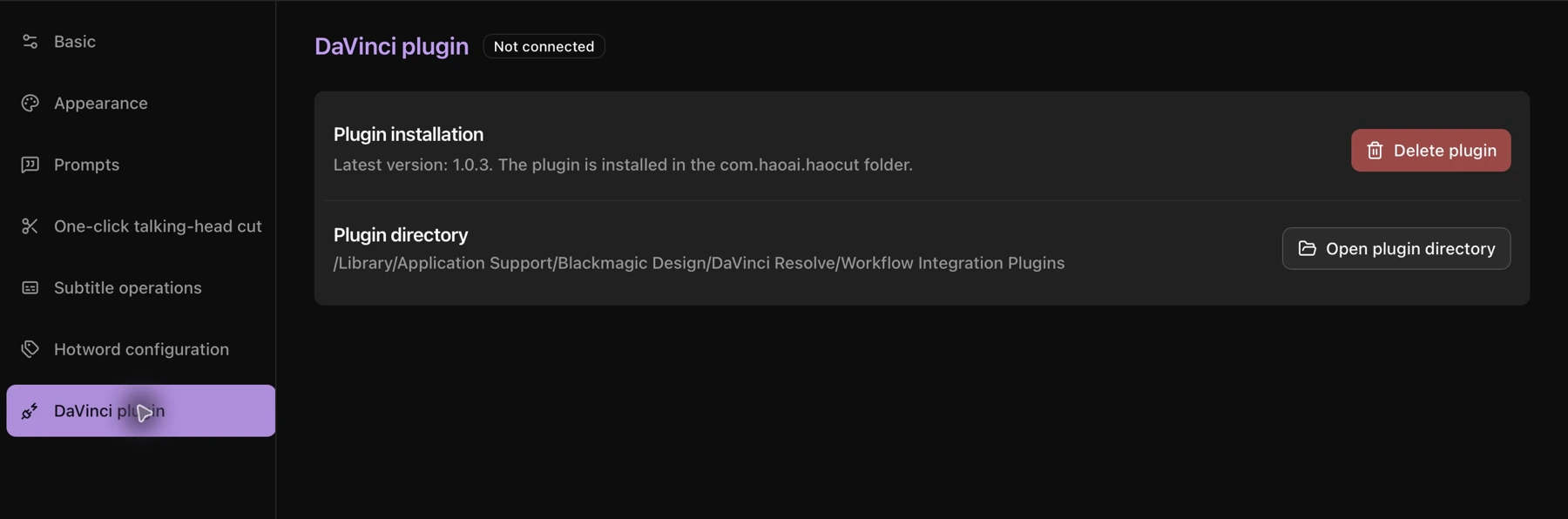
- Restart DaVinci Resolve and open your project and target timeline.
- In Resolve, choose Workspace → Workflow Integrations → haocut.
- Return to HaoCut, show the right information panel, and check that the plugin is connected.
Insert a selection
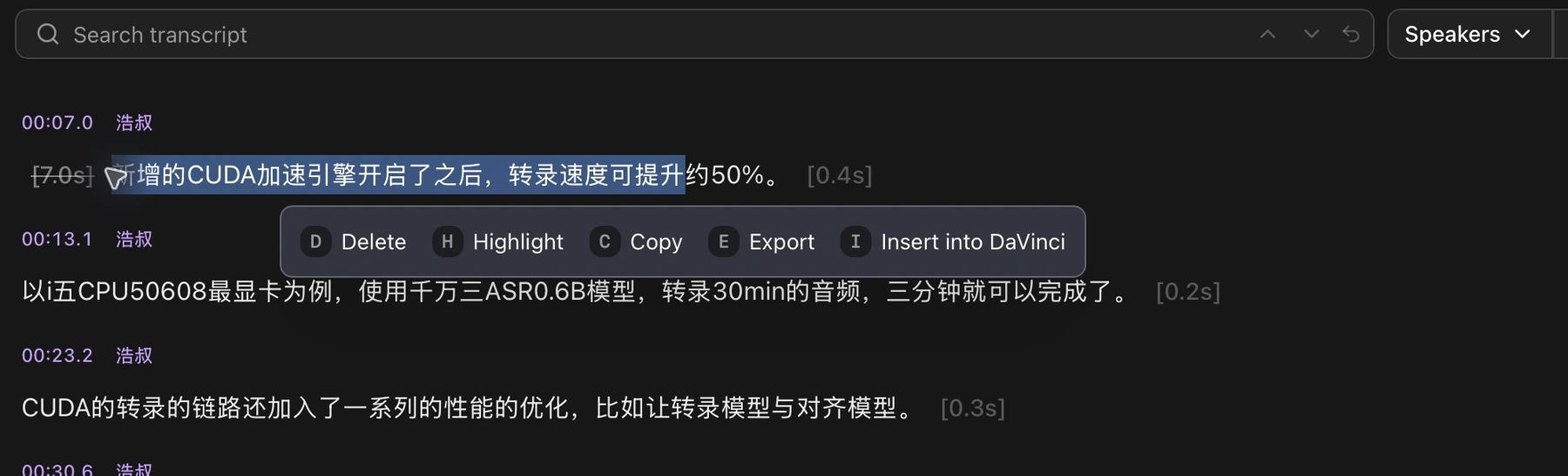
Select transcript text and click Insert into DaVinci.
Insert clips in a batch
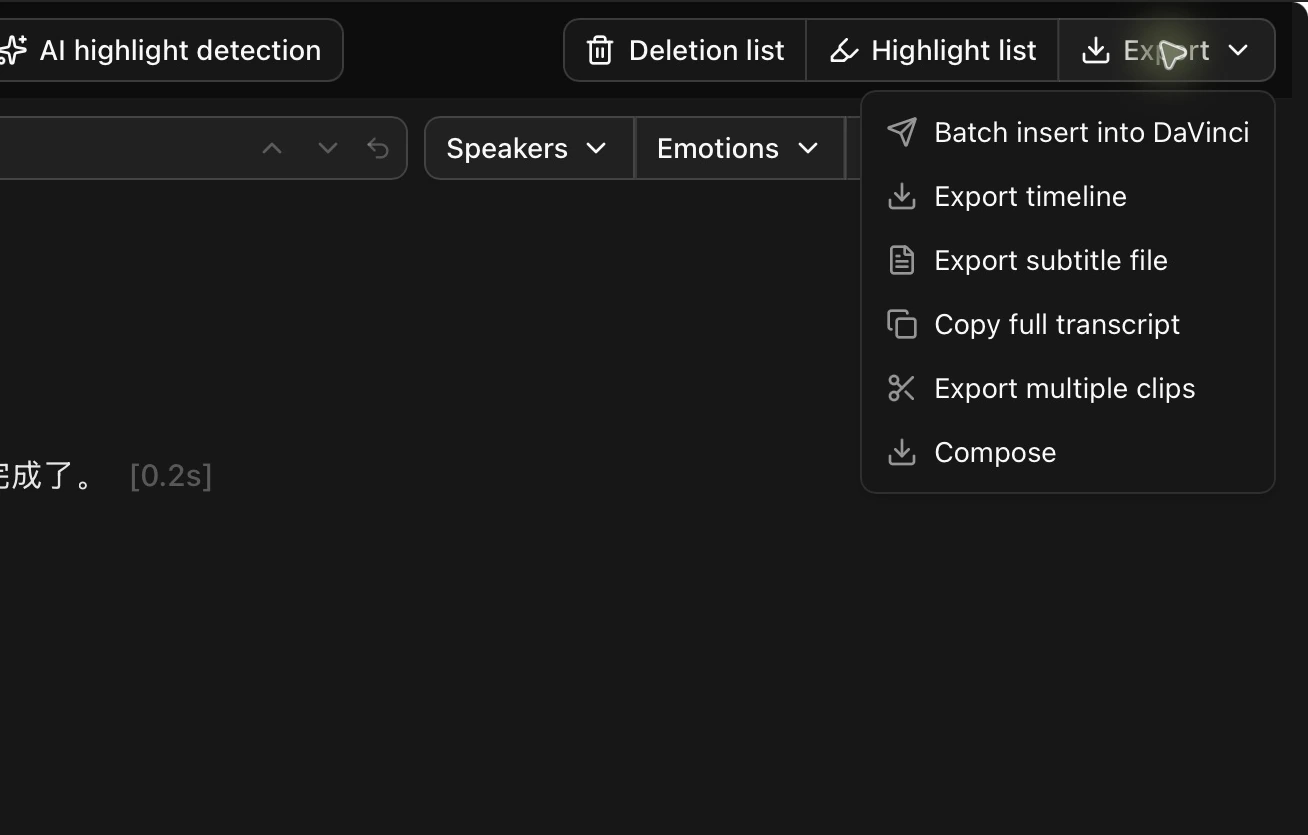
- Choose Export → Batch insert into DaVinci.
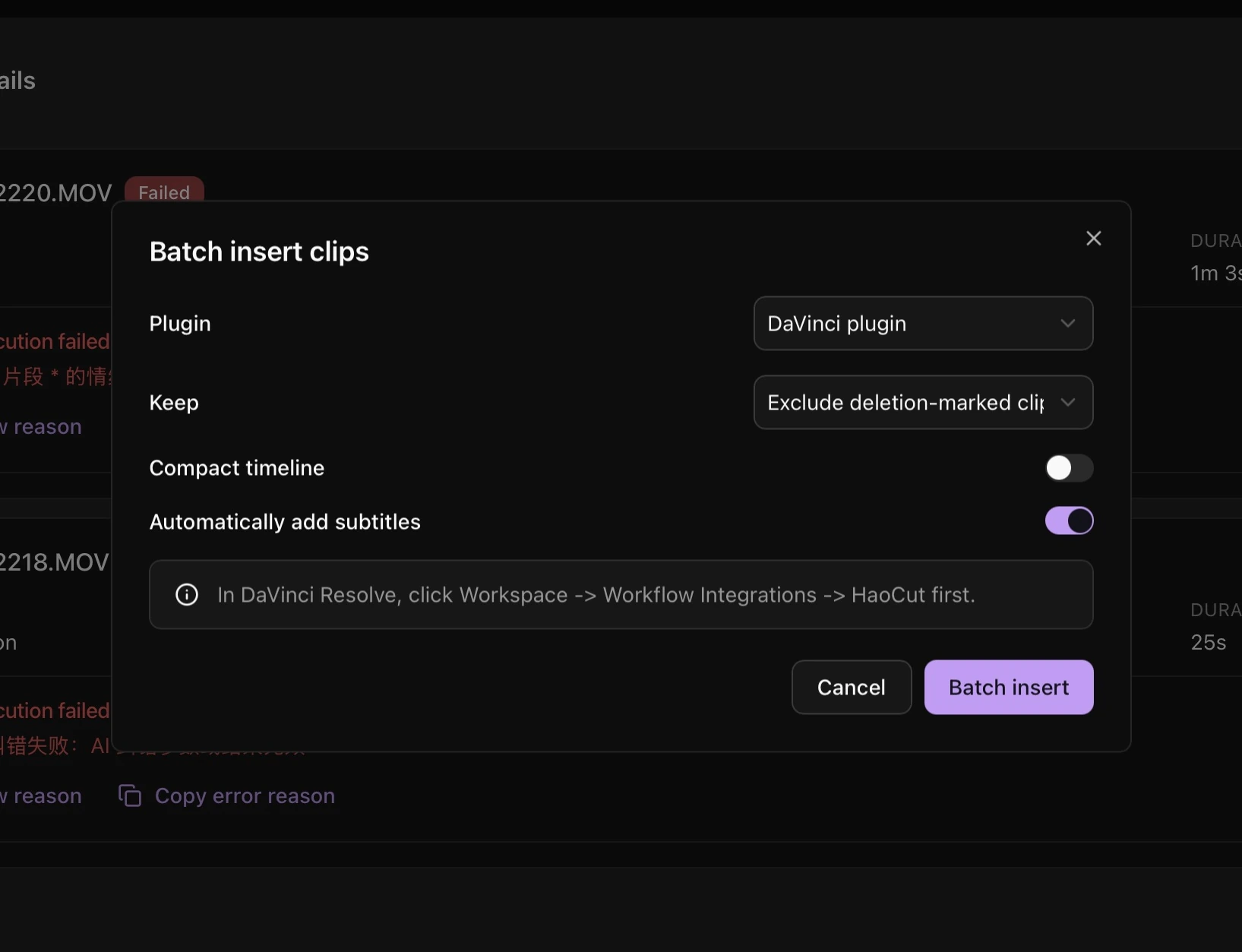
- Choose the clips to keep and the timeline options.
- Click Batch insert and inspect the timeline in Resolve.
Multiple files and automatic subtitles
- Select multiple videos in Explorer and choose Batch operations → Batch insert into DaVinci.
- Choose the keep condition. Enable Compact timeline or Automatically add subtitles if needed.
- Check the target timeline and plugin connection, then click Batch insert.
Click Insert View at the top left for a compact HaoCut window.